The AI Back Office · Univergent AI Intelligence for every business

Free system · Comment “FOLLOWUP”

Your follow‑ups, written by AI.

Level 1 of 2 — free

The customers you already won — actually followed up with. Paste in one finished job; a thank‑you, a check‑in, and a review ask come back written from your real work, ready to send. Here's the exact system, free. This page is Level 1 — you press send. Level 2 is installed for you; it's waiting at the bottom.

Get the system
~10 minto install
$0no subscription
~30 secof pasting, per job

Paste in one finished job. Get three ready‑to‑send emails back.

No software to buy, no agency, no tech skills. Everything below happens in a normal AI chat window, the same place you'd type any question. You set it up once; after that, writing every follow‑up takes seconds instead of an evening — real emails, in your voice, ready to send.

01

Install it — once, about ten minutes

Works in any of these. Pick the one you use

  1. Go to claude.ai in your browser (or open the Claude phone app) and sign in. A free account is enough to start.
  2. Click + New chat.

This is the one I use in the videos, so if you're undecided, start here.

Then it's three moves: copy and paste the block, check it landed, then fill in your details and send. First: hit Copy on the navy‑colored block just below, and paste it into the message box — the same box you'd type a question into. Don't send yet.

1 · Copy this block

Here's the block you copy and paste into the new chat:

Paste into Claude
You are the customer follow-up writer for [YOUR BUSINESS NAME].

About us: [ONE SENTENCE — e.g. "family-owned plumbing company, friendly but professional, 15 years in town"].
Review link to use: [YOUR GOOGLE REVIEW LINK — or write "ask me for it"].

Whenever I paste a finished job and a customer name, write exactly three emails:
1. DAY-AFTER THANK-YOU — thank them by name, reference the specific work we did, remind them we're here if anything needs a second look.
2. ONE-WEEK CHECK-IN — short, ask if everything is still working the way it should, make it effortless to reply.
3. TWO-WEEK REVIEW REQUEST — only this email asks for a review, includes the review link, and makes it a 60-second favor, not a chore.

Rules you never break:
- Reference the real job details I gave you — never generic filler.
- Sound like a real person from our shop. Contractions are fine.
- Never pushy, never salesy, no discounts or upsells in these emails.
- Subject lines included, short enough to read on a phone.
- If I forgot to give you something you need (like the customer's name), ask me — don't invent it.

Confirm you're ready, then wait for my first job.

2 · It goes here — the block in the message box
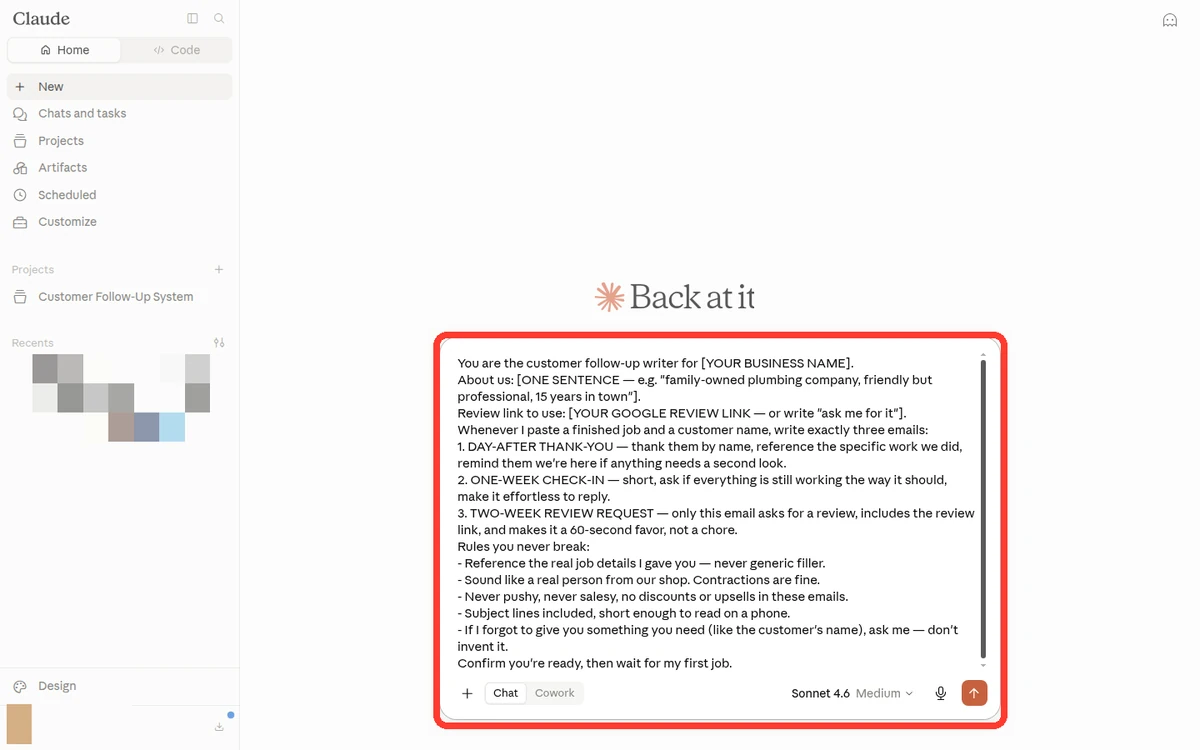
Real screenshot of claude.ai with the follow-up block already pasted into the message box — the block's first line is visible at the top of the highlighted box.
Claude (claude.ai): the block pasted into the message box, its first line visible — the moment before you hit send. UI as of 2026-08.No screenshot on this copy of the page — the check works without it: in Claude, look at the top of the message box after pasting; if the first line starts “You are the customer follow-up writer”, the whole block made it.
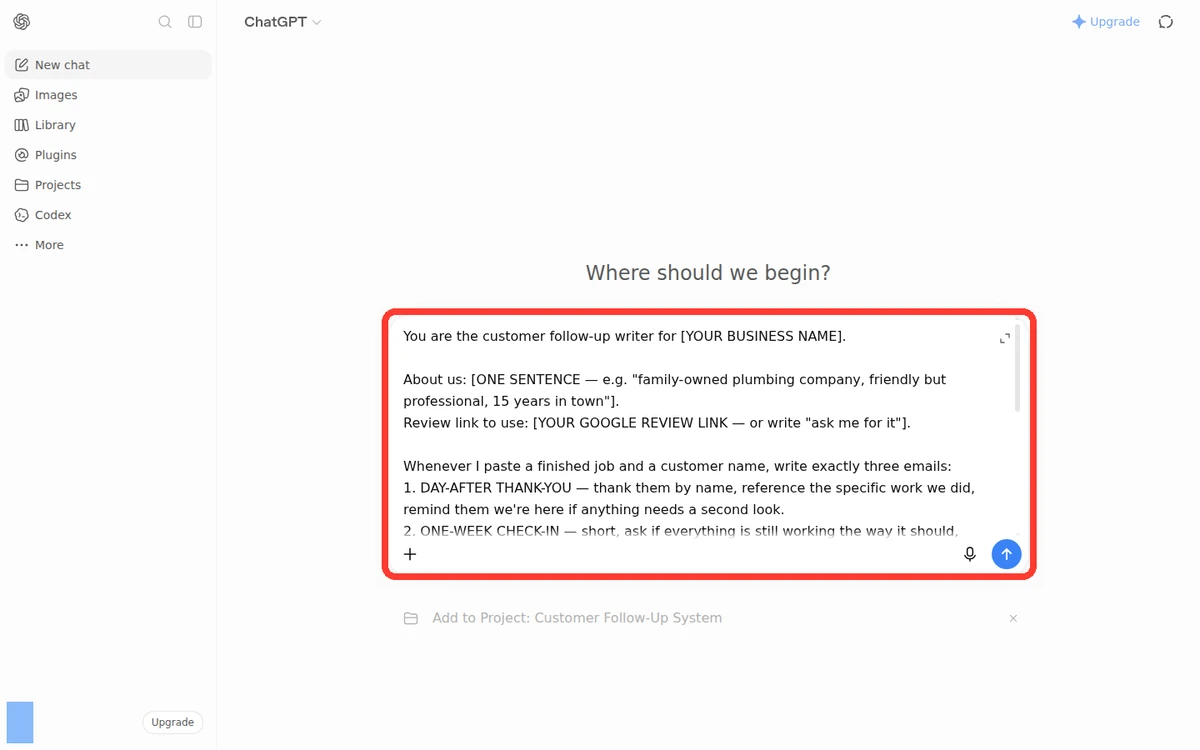
Real screenshot of chatgpt.com with the follow-up block already pasted into the message box — the block's first line is visible at the top of the highlighted box.
ChatGPT (chatgpt.com): the block pasted into the message box, its first line visible — the moment before you hit send. UI as of 2026-08.No screenshot on this copy of the page — the check works without it: in ChatGPT, look at the top of the message box after pasting; if the first line starts “You are the customer follow-up writer”, the whole block made it.
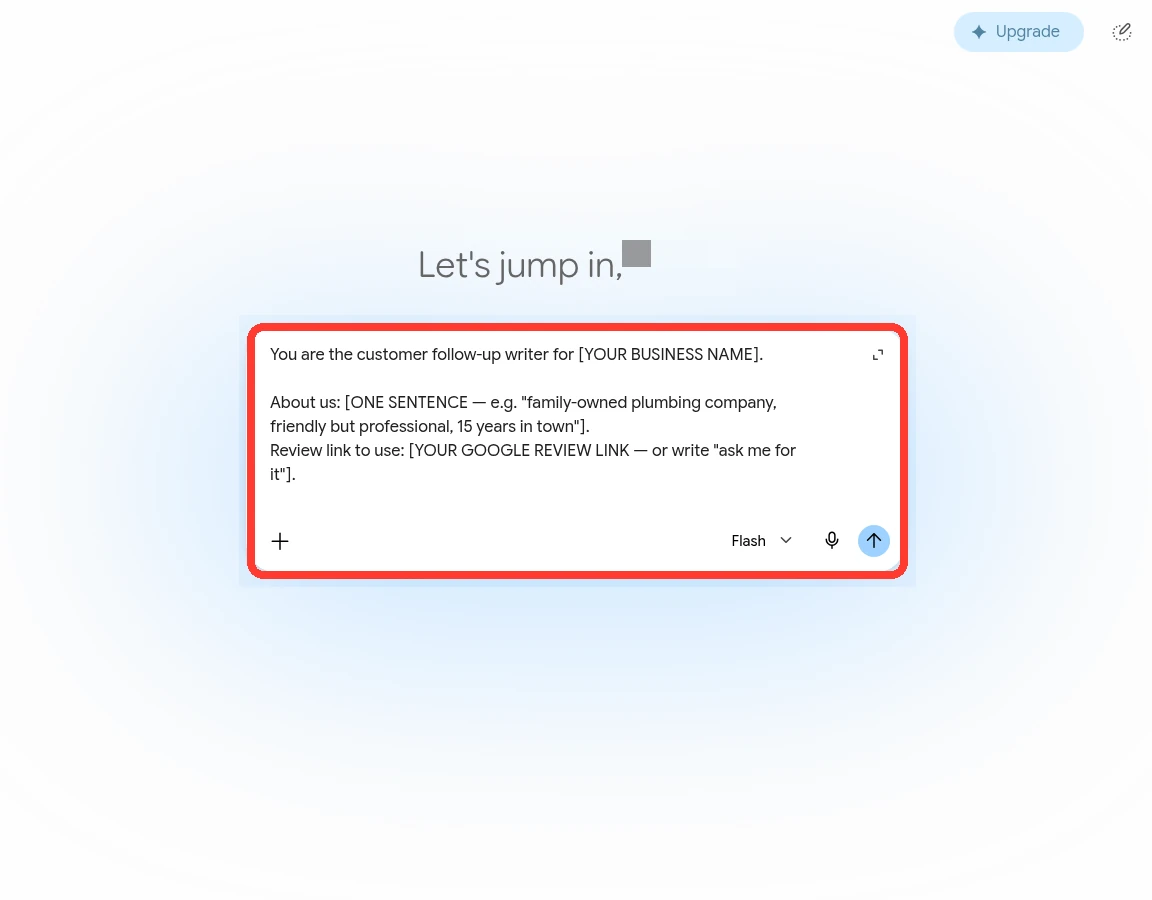
Real screenshot of gemini.google.com with the follow-up block already pasted into the message box — the block's first line is visible at the top of the highlighted box.
Gemini (gemini.google.com): the block pasted into the message box, its first line visible — the moment before you hit send. UI as of 2026-08.No screenshot on this copy of the page — the check works without it: in Gemini, look at the top of the message box after pasting; if the first line starts “You are the customer follow-up writer”, the whole block made it.
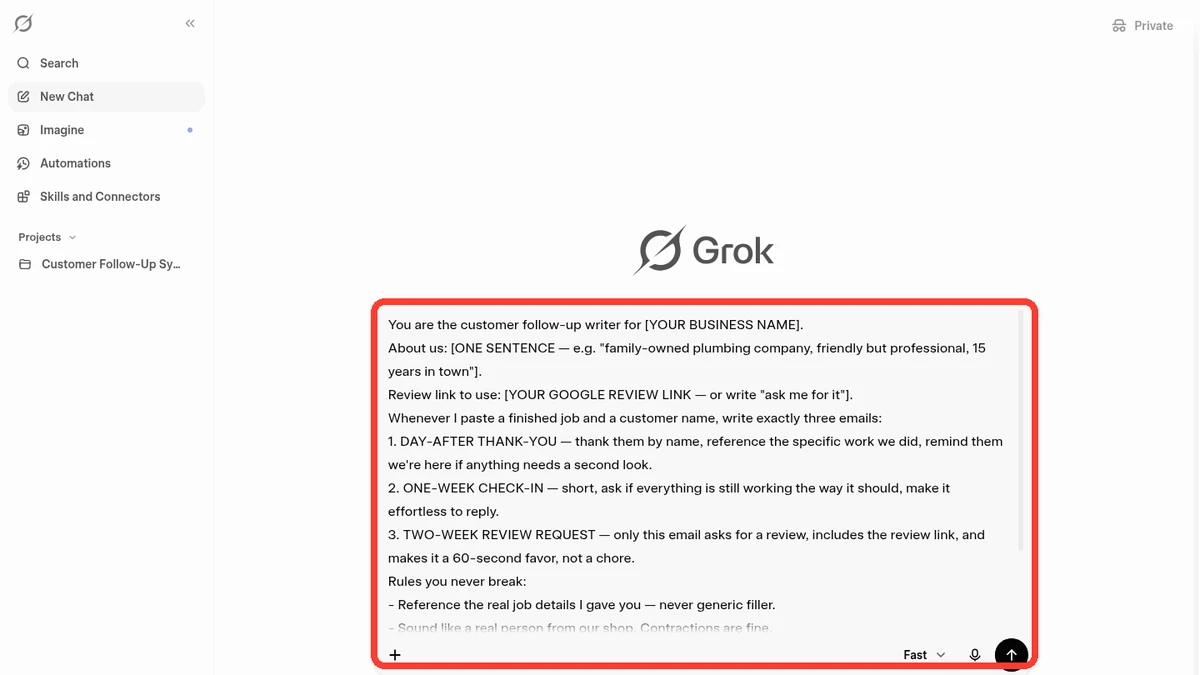
Real screenshot of grok.com with the follow-up block already pasted into the message box — the block's first line is visible at the top of the highlighted box.
Grok (grok.com): the block pasted into the message box, its first line visible — the moment before you hit send. UI as of 2026-08.No screenshot on this copy of the page — the check works without it: in Grok, look at the top of the message box after pasting; if the first line starts “You are the customer follow-up writer”, the whole block made it.

Second: check it landed. Look at the top of the message box — the first line should read You are the customer follow-up writer for [YOUR BUSINESS NAME]. If you can see that line, you got the whole block.

Third: fill in your details and send. Still in the message box, replace the three [BRACKETED] lines with your business's details — they're light blue here on this page; in your chat box they're plain text, so look for the square brackets. Edit them right there in the box, then send it.

It will confirm it's ready. That chat is now your follow‑up writer. One more thing before you move on: save the block itself somewhere you can always find it (a note on your phone, a doc, anywhere). The block is the system; the chat is just where it lives today.

Optional, free, and worth it: save it as a ProjectGemnote

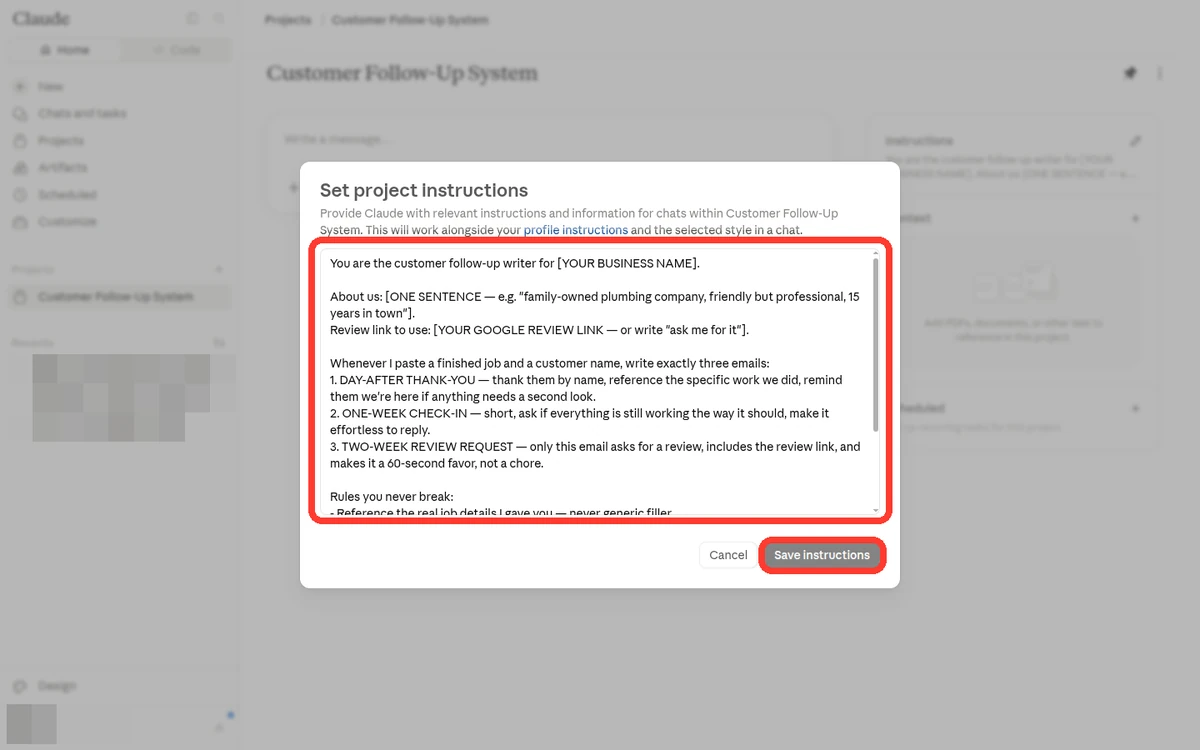
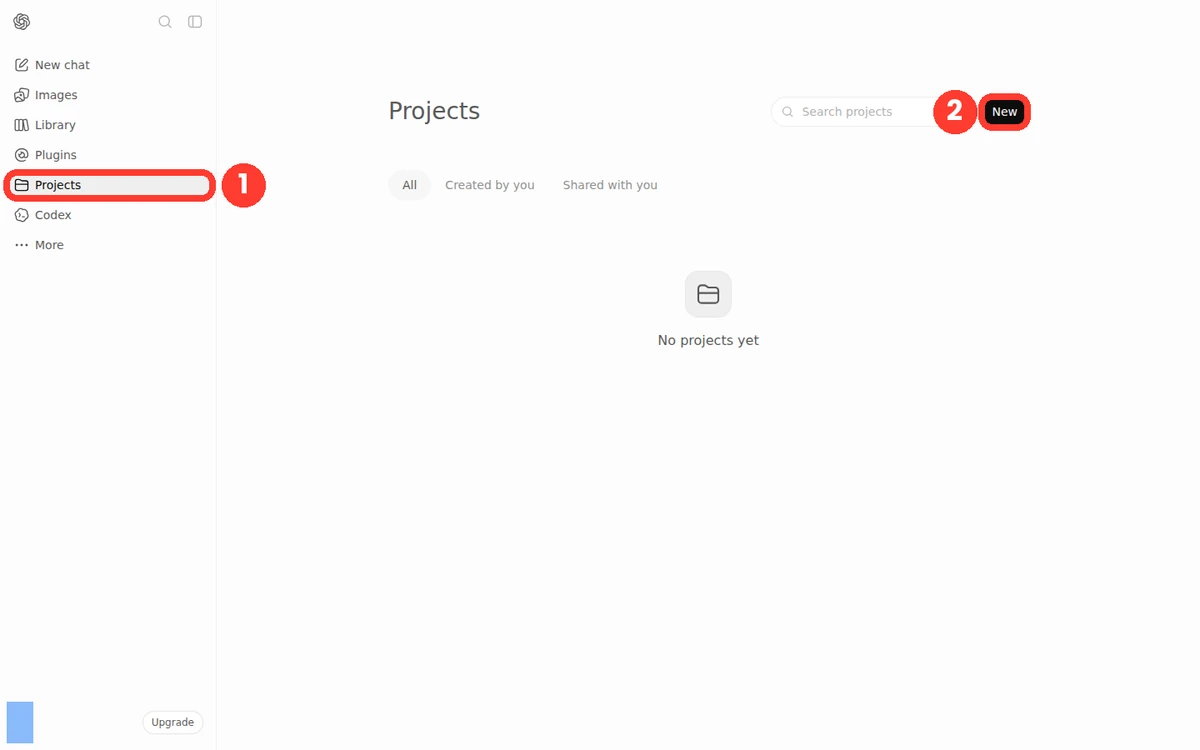
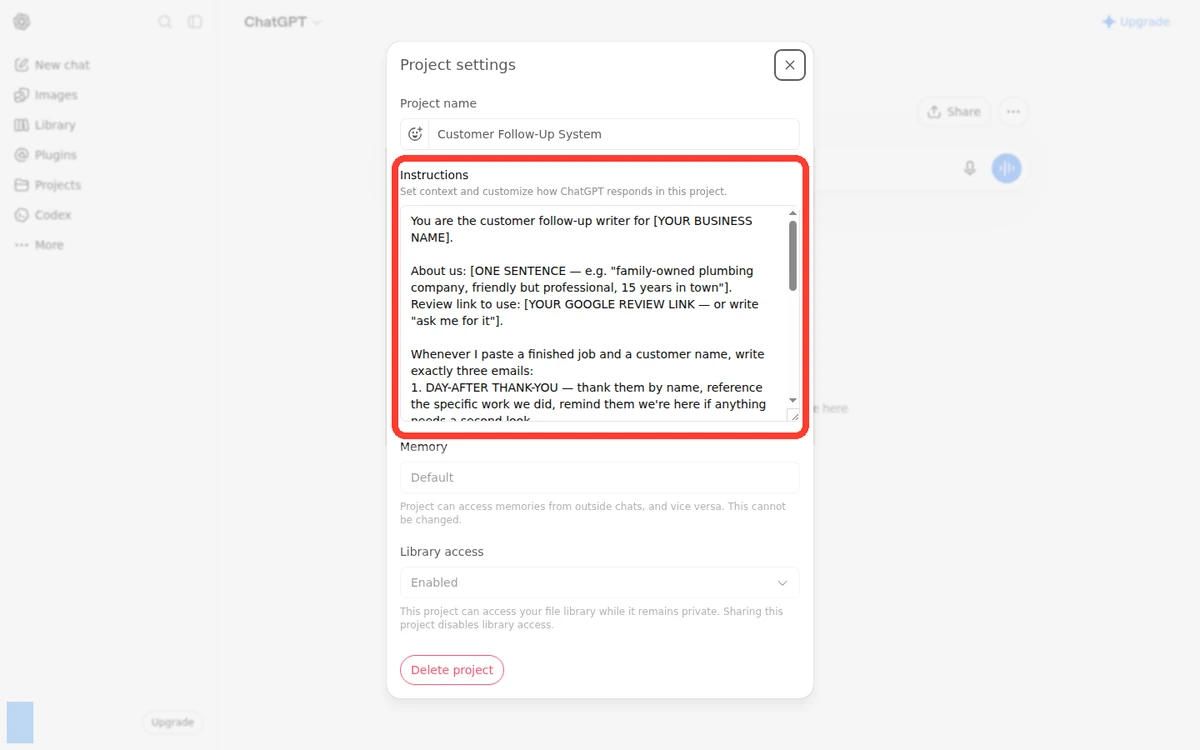
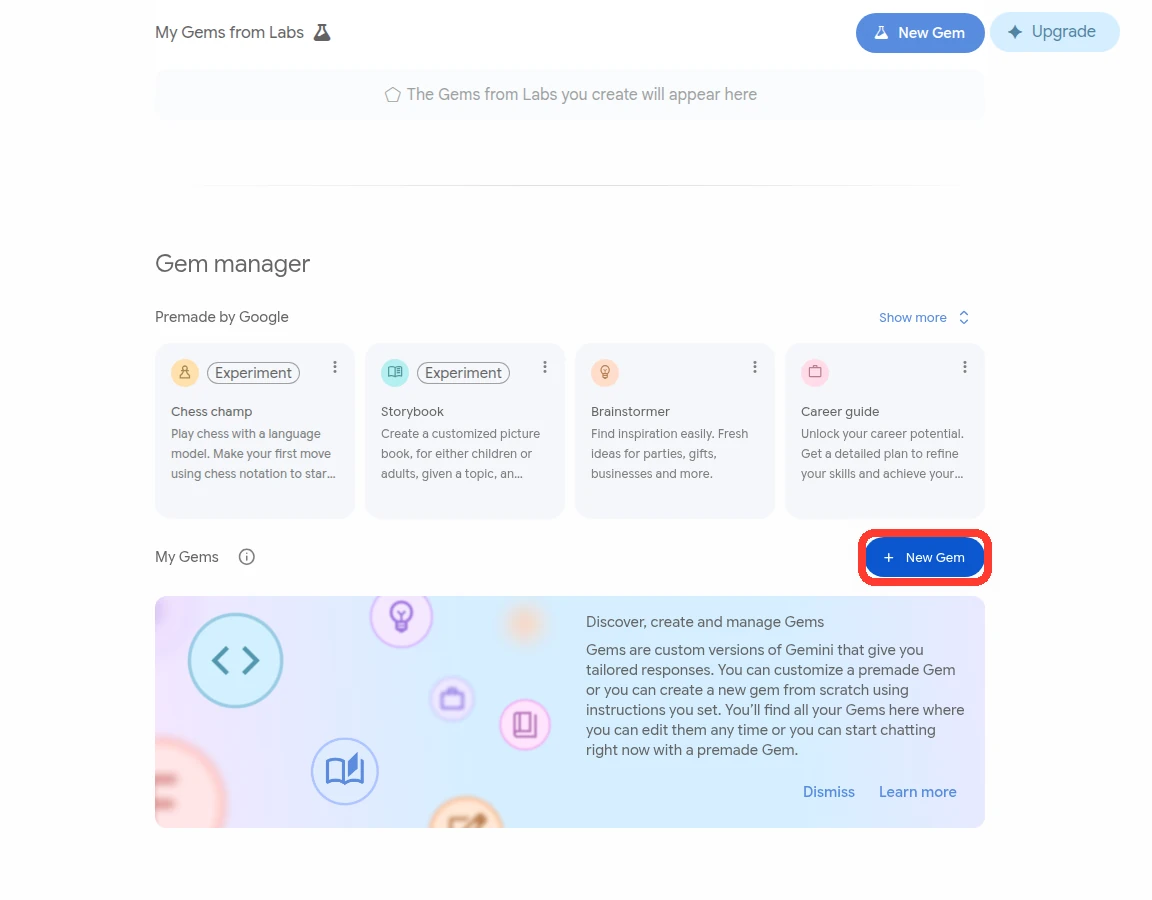
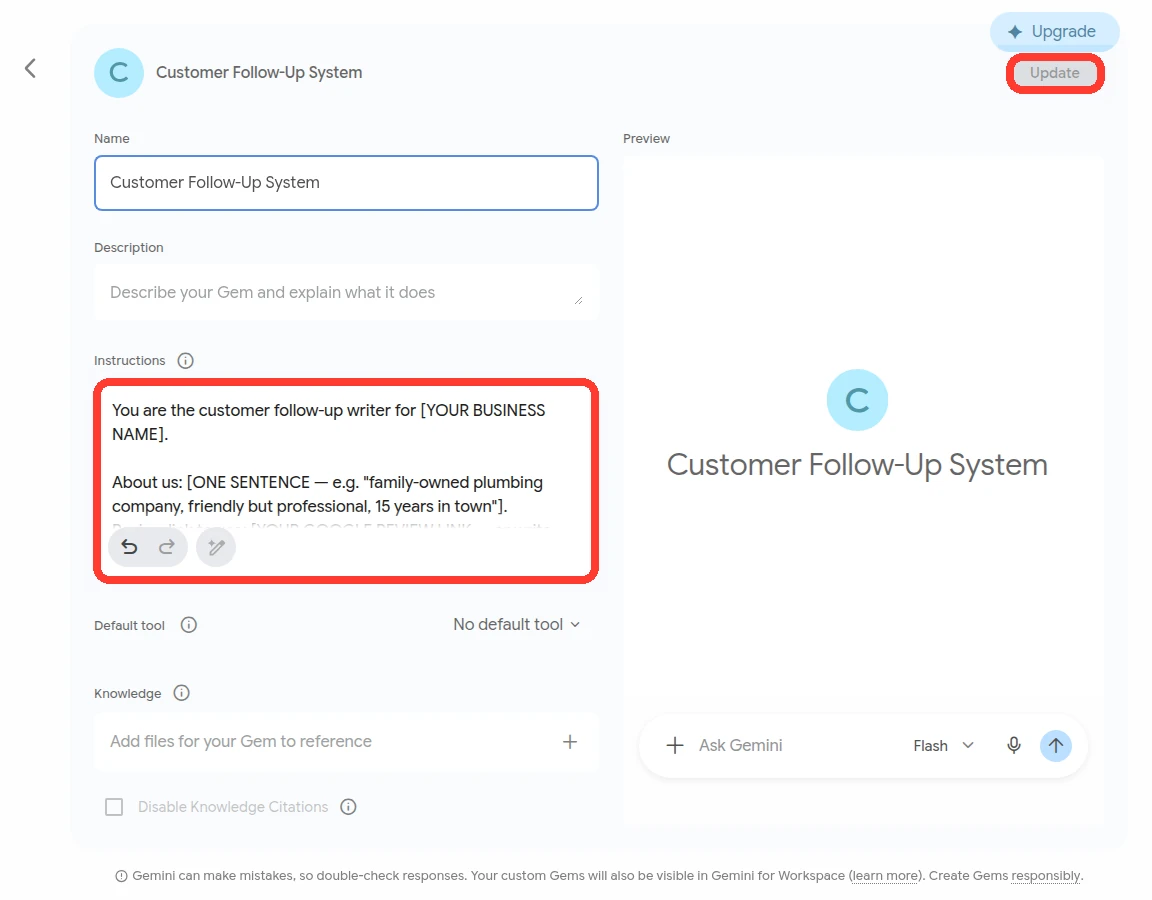
In Claude, look for Projects in the left sidebar → New project → paste the block into the project's instructions, and hit Save instructions.In ChatGPT, look for Projects in the left sidebar → New project → paste the block into its instructions — it keeps what you paste; just close the settings window when you're done.In Gemini, go to gemini.google.com/gems (the Gems page) → New Gem → paste the block in as the Gem's instructions, then hit the save button top‑right (labeled Update on the screenshot below, since that Gem already existed).Grok's Projects are folders for organizing chats — they can't hold saved instructions yet. Keep the block in a note instead; pasting it into a fresh chat takes ten seconds.

The real screens, in order — first where to click, then where the block goes:
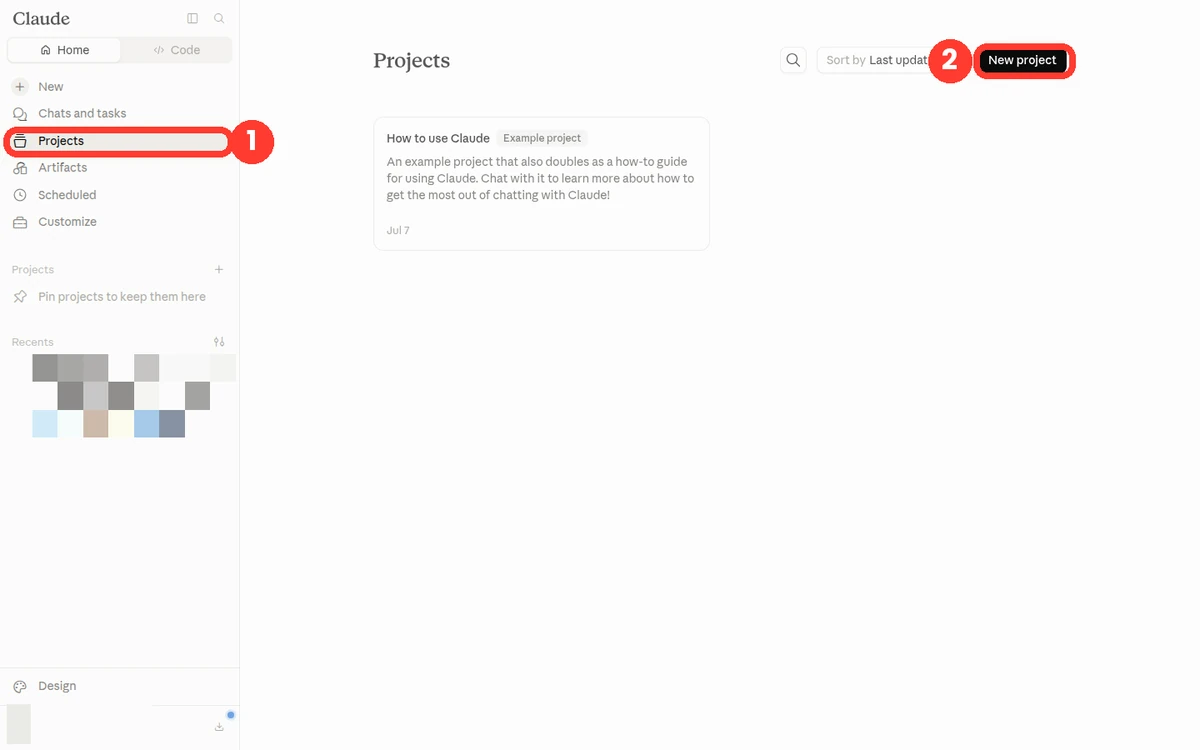
Real screenshot of claude.ai — Projects highlighted in the left sidebar, with the New project button.
Claude: Projects in the left sidebar → New project. UI as of 2026-08.In Claude, Projects sits in the left sidebar — click it, then “New project”.
Real screenshot of a Claude project — the instructions field highlighted; the block gets pasted there.
Claude: the block pasted into the project's instructions field — its first lines visible at the top. UI as of 2026-08.Inside the new project, open its “instructions” and paste the block there once.
Real screenshot of chatgpt.com — Projects highlighted in the left sidebar, with the New project button.
ChatGPT: Projects in the left sidebar → New project. UI as of 2026-08.In ChatGPT, Projects sits in the left sidebar — click it, then “New project”.
Real screenshot of a ChatGPT project — the instructions field highlighted; the block gets pasted there.
ChatGPT: the block pasted into the project's instructions — its first lines visible at the top. UI as of 2026-08.Inside the new project, open its “instructions” and paste the block there once.
Real screenshot of the Gemini Gems page — the New Gem button highlighted.
Gemini: the Gems page (gemini.google.com/gems) → New Gem. UI as of 2026-08.In Gemini, go to gemini.google.com/gems and click “New Gem”.
Real screenshot of a new Gemini Gem — the instructions field highlighted; the block gets pasted there.
Gemini: the block pasted in as the Gem's instructions — its first lines visible at the top. UI as of 2026-08.On the new Gem screen, paste the block into the “instructions” field once.

Do it once and every new chat you start in there already knows the system — nothing to re‑paste, ever. If you don't see the feature in your app, no problem: the saved block does the same job, one paste at a time.Keep the note somewhere you'll always find it — pasting it into a fresh chat takes ten seconds, and the result is identical.

Do I need a paid plan?

No — start free. The free version of every app aboveon this page runs this system. Free plans have a daily usage limit, but a few follow‑up batches a day fit comfortably inside it.

If it becomes an every‑day habit, the ~$20/month tier (Claude Pro, ChatGPT Plus, and the equivalents) mostly buys you higher daily limits. Nice to have, not required. The $100+ plans are built for heavy developer work — you will never need one for this.

Do I need "Claude Code" or any developer tools?

No. Claude Code is a separate, developer version of Claude that lives in a programmer's terminal — you'll hear it mentioned around AI videos, including mine, because it's what I use to build bigger systems.

This system never touches it, whichever app you picked. The regular chat app is the whole toolkit. If you can send a text message, you have all the technical skill this page requires.

What's a "Project"? (the one idea worth understanding)

Here's the mental model that makes everything click: a chat only remembers that chat. Open a new one tomorrow and it's a blank slate — it has no idea your follow‑up system exists. That's why the block matters: pasting it is how you install the system anywhere, in seconds.

A Project (ChatGPT uses the same word; Gemini calls it a Gem) is a folder with saved instructions. Put the block there once, and every new chat inside that folder already knows the system. Memory in one chat becomes memory in every chat — that's the whole upgrade. The “save it as a Project” box just above shows exactly where to click. Step 1's “save it as a Project” box shows exactly where to click. The “save it as a Gem” box just above shows exactly where to click. Step 1's “save it as a Gem” box shows exactly where to click. Grok's Projects can't hold saved instructions yet — a saved note (see the box just above)(Step 1 shows how) does the same job.

If you've heard developers mention a file called CLAUDE.md: same idea with work boots on. You don't need it here.

Where do I find my Google review link?

Google gives every business listing a short "leave us a review" link. Sign in to the Google account that manages your listing, search for your own business name on Google, and look for "Ask for reviews" in the business panel that appears (it's also in your Google Business Profile dashboard). Copy that link into the bracket.

No Google listing? Any review page works — Yelp, Facebook, wherever your customers already find you. Or write "ask me for it" in the bracket and add the link later; the system will ask you when it needs it.

02

Use it — every finished job, about 30 seconds

When you finish a job, paste two lines. Where you paste them depends on how you set up in Step 1. There are exactly two possibilities:

If you pasted the block into a chatUse that same chat

▸ SETUP BLOCK (pasted once, at the top)
Job: replaced water heater · Maria D.
✉ ✉ ✉ — three emails back
Job: unclogged main line · Sam R.
✉ ✉ ✉ — three emails back

Every job goes into the same chat where the block lives, the one that said "ready." Keep it pinned or bookmarked.

If you saved it as a Project / GemAny chat inside it

▸ PROJECT INSTRUCTIONS = the block
Monday's chat — already knows the system
today's chat — already knows the system
any new chat — already knows the system

The instructions are pinned to the folder, so start any new chat in the Project and just paste the job.

First time? Run the two‑minute test in Step 3 before anything goes to a real customer. Then come back here for the daily rhythm. Here's the two‑line note — hit Copy on the navy‑colored block below, paste it into the chat, and swap in your real job and customer right there in the message box before sending:

Every job
Job: replaced the water heater, hauled off the old one, done in one visit
Customer: Maria Delgado

Proof — what comes back (a one‑time demo; your daily run stays ~30 seconds)

Here's what actually comes back.

So you know what you're looking for the first time you run it: I did exactly the steps on this page — ran the setup block from Step 1 in a fresh Claude chat, filled its brackets in for a made‑up plumbing company, then pasted the navy‑colored two‑line job note directly above.

Back came emails 1 and 2 — plus a question. The block forbids inventing missing details, so instead of making up a review link, it asked for one; once it had it, it wrote email 3. That's the block's rules working.

All three are below, real output, trimmed and lightly edited before publishing — the same quick read‑through you'd give any email. The white card below is email 1 in full; this is what you'd copy into your email app and send:

Emails 2 and 3 come labeled with when to send each one: the one‑week check‑in (subject: “How's the new water heater treating you?”) and the two‑week review ask (subject: “Got 60 seconds, Maria?”).

Read emails 2 and 3

Honest label: nothing above was hand‑written — Claude wrote all of it from the block on this page. The only edits before publishing: trims for length, a few smoothed sentences, and the sample review link swapped for the placeholder you see in email 3.

Copy the three emails your chat wrote into your email app — each one is its own separate email: the Subject: line goes in the subject field, everything under it is the body, addressed to the customer's email (the one from the job or the invoice). Send the first now; the other two are already written — send them on schedule, or set two phone reminders. Every customer, every time.

What happens when the chat gets really long?

Long chats eventually slow down or hit their limit. That's normal, and nothing is lost when it happens, because the system was never the chat. It's the block.

Start a fresh chat, paste your saved block again, and keep working — ten seconds, done. (If you're using a Project, this never comes up: just start a new chat inside it.)

03

Test it works — two minutes, do this once

Paste a fake job — “Job: fixed the squeaky gate. Customer: Test Customer” — and check what comes back against this checklist:

  • All three emails came back, each with a subject line. (Wrote “ask me for it” for the review link? It may write two and ask before the third — that's it following the rules, not breaking. Give it any link and it finishes.)
  • The gate is mentioned by name, not “your recent service.”
  • Only the third email asks for the review.
  • It sounds like you, not a robot. If not, tell it what you'd never say — it adapts from then on.